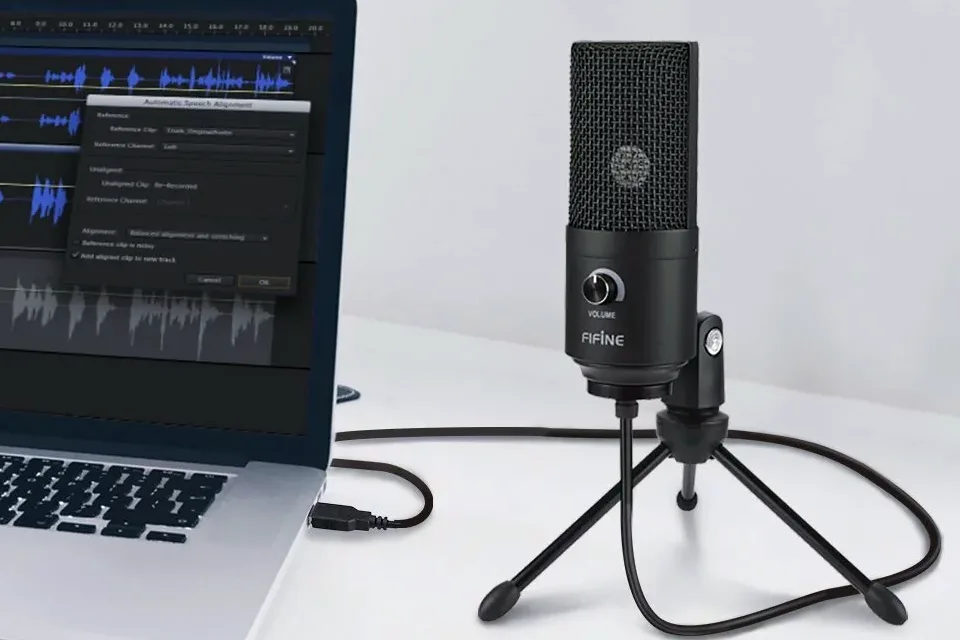

You are about to join an important meeting, and the last thing you want is that dreaded moment: everyone stares at you while you fumble with a dead microphone. Testing your mic takes less than a minute, yet most people skip it and pay the price mid-call. This guide shows you exactly how to test a mic on Mac, Windows, any laptop or PC, online, and inside the apps you actually use — plus how to fix the most common problems when the meter stays silent.
Quick Mic Test (Try It Right Here)
Click Start, allow mic access, and speak — the meter should move. Then record 5 seconds and play it back to hear yourself. Everything runs locally in your browser.
Need a deeper check with device switching and diagnostics? Use the free AIToolsPros Mic Test — no install, nothing uploaded.
A mic test simply confirms that your computer can hear you. You speak, you watch a level meter respond, and ideally you record a short clip and play it back so you know what you actually sound like. That last part matters more than you think: a moving meter proves the mic works, but a playback recording proves it sounds good enough for a call. Below, I break it down by device so you can jump straight to yours.
The 30-Second Quick Answer (Test Any Mic Fast)
If you want the short version, do this before anything else:
- Close other apps that might be using the mic (Zoom, Discord, OBS) — they can lock it.
- Open an online mic test, click Start, and click Allow when the browser asks for microphone permission.
- Speak normally and watch the level bar or waveform move.
- Record a few seconds, stop, and play it back through headphones.
If the meter moves and your voice plays back clearly, your mic works. If the meter stays flat, keep reading — the troubleshooting section at the end fixes almost every silent-mic case.
1. How to Test Microphone on Mac (macOS Ventura, Sonoma & Sequoia)
Every Mac has a built-in live input meter, and you do not need any app to use it. This is the first place to check because it tells you whether macOS itself can hear you — before you blame Zoom or your browser.
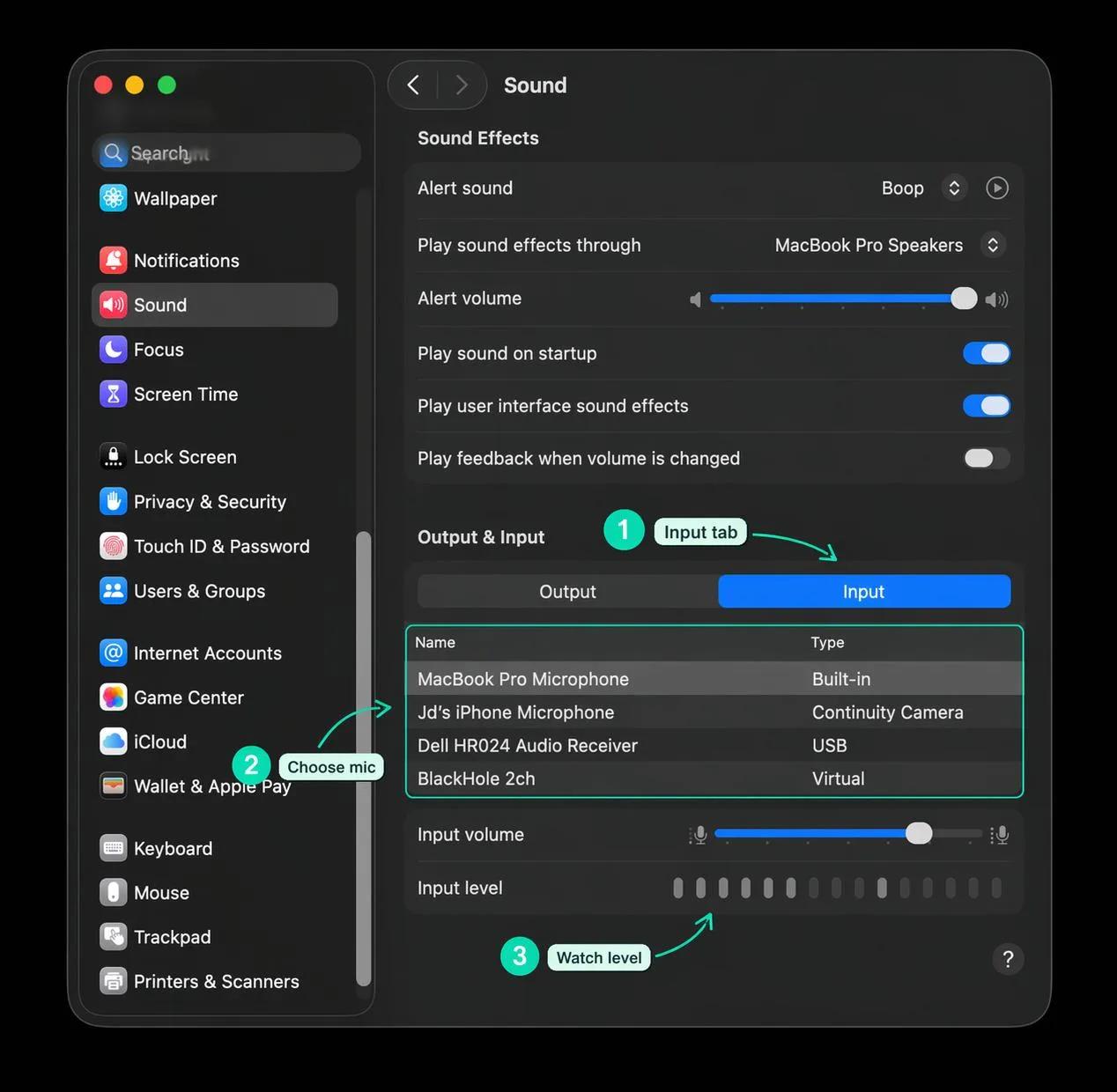
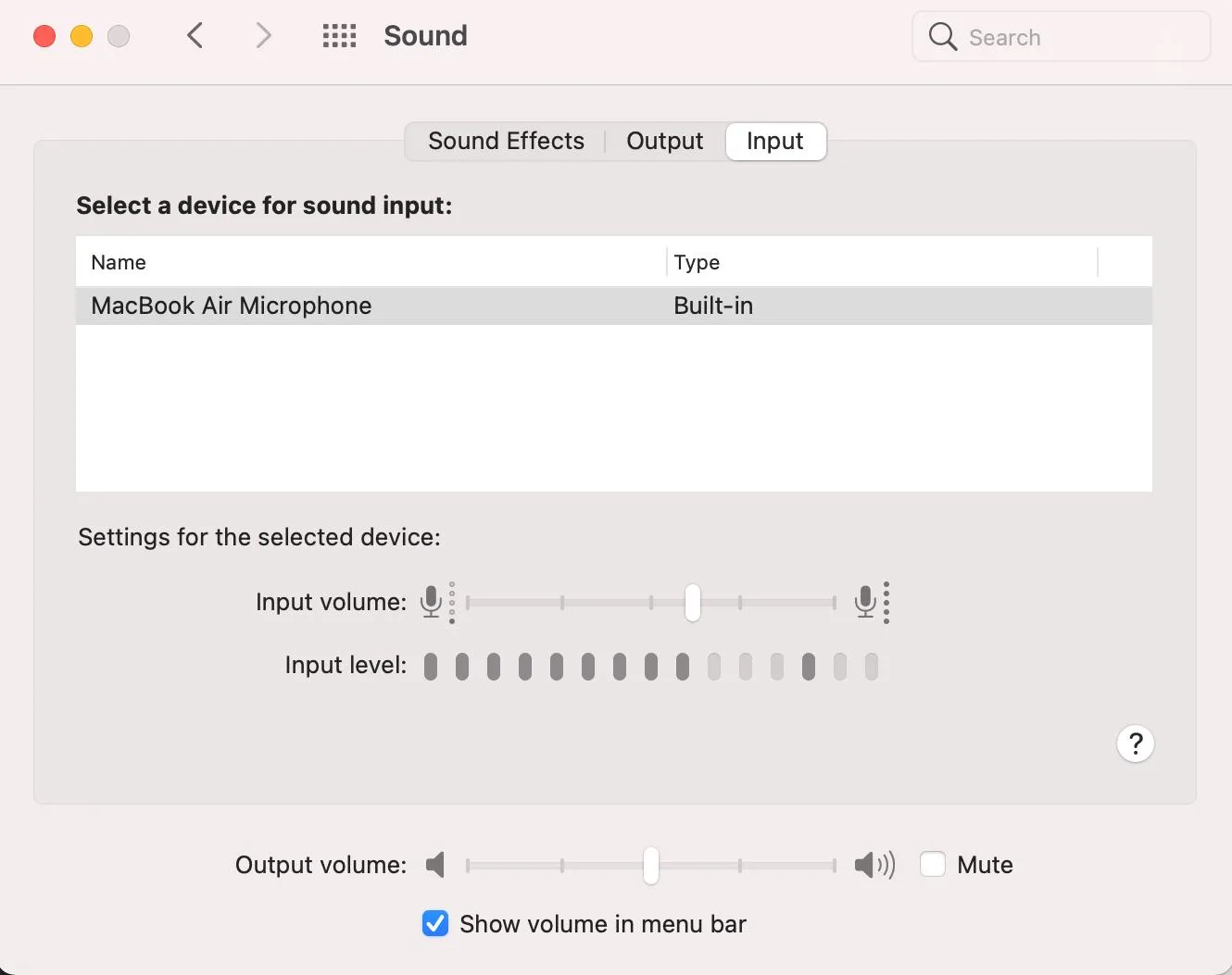
- Click the Apple menu in the top-left corner and open System Settings (System Preferences on older macOS).
- Click Sound in the sidebar, then select the Input tab.
- Choose the microphone you want to test from the device list — “MacBook Pro Microphone” or “MacBook Air Microphone” is the built-in one; external USB mics show their product name.
- Speak normally and watch the Input level meter. If the bars flicker as you talk, your Mac hears you.
- Drag the Input volume slider if the meter barely moves — aim for peaks around three-quarters of the bar, not pinned at maximum.
If the built-in microphone is completely missing from the list, do not assume hardware failure — a crashed Core Audio process can hide it. Apple’s official Apple guide walks through the full diagnostic. For a quick fix, open Terminal and type sudo killall coreaudiod, enter your password, and Core Audio restarts in seconds — the mic usually reappears.
For a true playback test, open the Voice Memos app (or QuickTime Player → File → New Audio Recording), record ten seconds of yourself reading a sentence, and play it back. Listen for muffled sound, keyboard clatter, or room echo. The built-in MacBook mic picks up fan noise and desk taps easily, so hearing yourself is the only way to know if you need an external mic.
2. How to Test Microphone on Windows 11 (PC & Laptop)
Windows 11 has the best built-in mic test of any operating system: it not only shows a live meter but records a short sample and lets you play it back. That single feature catches most problems.
- Right-click the speaker icon in the taskbar and choose Sound settings (or Start → Settings → System → Sound).
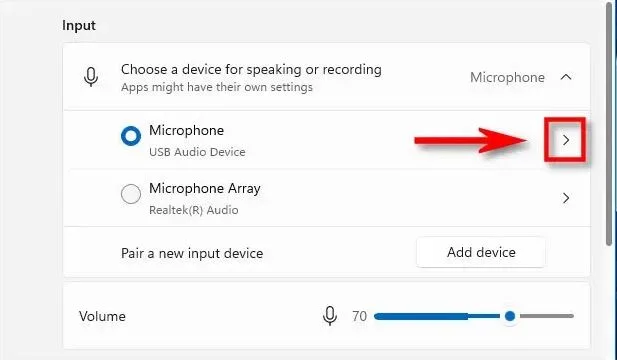
- Scroll to the Input section. Under “Choose a device for speaking or recording,” select the microphone you actually want — Windows often defaults to the wrong one after you plug in a headset.
- Speak into the mic. The blue Input volume bar should rise and fall as you talk. If it moves, Windows hears you.
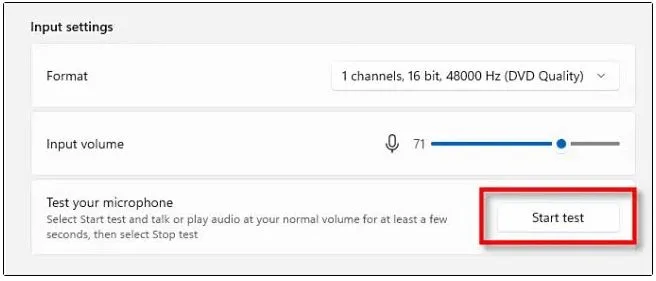
- For the full test, click the arrow (>) next to your mic to open its Properties. Under Microphone test, click Start test, speak normally for a few seconds, then click Stop test and hit Play to hear the recorded sample.
Microsoft’s official Microsoft guide covers the same steps for both Windows 11 and Windows 10. If you prefer the classic panel, press Win + R, type mmsys.cpl, and go to the Recording tab — the green bars next to your mic rise when it hears sound. For a quick recording, open the Sound Recorder app built into Windows, record a clip, and play it back.
3. Test Your Mic Online in Any Browser
An online mic test is the fastest cross-platform check because it works identically on Mac, Windows, Chromebook, and Linux. It also tests exactly the layer that most meeting apps use — your browser’s microphone access. The test works through the standard browser API that every modern browser supports, and good tools process everything locally so your voice never leaves your machine.
- Open a mic test page and click Start or Test mic.
- When your browser pops up the permission prompt, click Allow. This is the step most people miss — if you ever clicked “Block,” the browser remembers that choice and stays silent forever.
- Speak at your normal volume. A live waveform or volume meter should react.
- Use the device dropdown to switch between microphones if you have more than one — test each one separately.
- Record a short clip and play it back through headphones to judge actual quality.
If the permission prompt never appears, click the lock icon in the browser address bar, find Microphone, set it to Allow, and reload the page. On an iPhone or iPad, only Safari can access the microphone — other browsers are blocked at the system level, so use Safari for any mobile mic test.
4. Test the Mic Inside Zoom, Teams & Discord
A mic can pass the system test but still fail inside one app, because every app has its own microphone selector and mute button. Test inside the app you actually use before the meeting starts.
- Zoom: Open Settings → Audio, click Test Mic, speak, and listen to the playback. In a meeting, click the arrow next to the mute icon and choose Test Speaker & Microphone.
- Microsoft Teams: Before joining, click Customize setup on the pre-join screen and watch the mic meter. Or Settings → Devices → Make a test call.
- Google Meet: On the join screen, click the three dots → Settings, and the mic meter responds as you speak.
- Discord: User Settings → Voice & Video → Let’s Check, then listen to the playback.
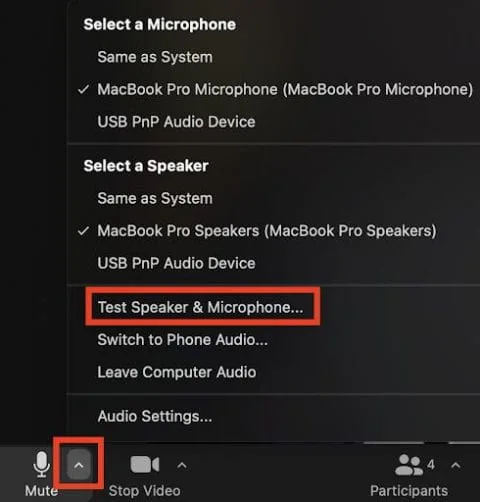
The classic mistake: the system test works, but Zoom is set to “Same as System” while a virtual audio device (Krisp, NVIDIA Broadcast, Voicemod) is intercepting the signal. If you use any of those, select the virtual device explicitly in the app, or bypass it and pick your real mic directly. Zoom’s own Zoom guide covers the full audio setup walkthrough.
5. How to Read Your Test Results
A moving meter only proves the mic is alive. Use this table to judge what you actually hear on playback, and what to do about it.
| What you observe | What it means | What to do |
|---|---|---|
| Meter steady in the green, voice clear | Perfect — you are ready | Nothing. Join the call. |
| Meter barely moves | Input gain too low, or wrong mic selected | Raise Input volume, select the right device, move closer (6–12 in). |
| Meter hits red / voice distorts | Too loud — clipping | Lower Input volume, move the mic away, turn off mic boost. |
| Voice present but muffled | Mic blocked by clothing, case, or a laptop lid | Reposition the mic, check nothing covers it. |
| Constant hum or hiss | Electrical noise, fan, or a bad cable | Use a different USB port, test a noise generator reference to isolate the floor, or replace the cable. |
| Echo or reverb | Room reflection or speakers feeding back | Use headphones, move closer to the mic, add soft furnishings. |
| Others hear you fine, one app silent | App-level permission or wrong device | Check the app’s mic selector and OS permission for that app. |
For a deeper quality check, play a clean sine sweep through speakers and compare — or simpler, use a tone generator to confirm your mic responds across low and high frequencies evenly. Most voice work only needs the 300 Hz–3 kHz range to sound clear, so do not obsess over full-spectrum response.
6. Microphone Not Working? Fix It in This Order
Work through these steps from top to bottom. The first five fix well over 90% of silent-mic cases, and they take about two minutes total.
- Check the physical mute button. Headsets, USB mics, and even some keyboards have a hardware mute switch or a mic-mute key — confirm the light is not red.
- Pick the right input device. Windows and macOS both default to the wrong mic constantly. In Sound settings, select the one you actually speak into.
- Raise input volume from zero. A slider at 0% looks identical to a dead mic. Drag it to at least 50–75%.
- Check OS privacy permission. Windows: Settings → Privacy & security → Microphone → turn on Microphone access and allow your app. Mac: System Settings → Privacy & Security → Microphone → enable your browser or app. Quit and reopen the app after changing this.
- Close apps that may hold the mic. Zoom, Meet, Discord, OBS, and recording apps can lock exclusive access. Close them fully, then retest.
- Restart the audio service. On Mac:
sudo killall coreaudiodin Terminal. On Windows: right-click Start → Device Manager → Sound, video and game controllers → uninstall the audio driver → restart. Windows reinstalls it automatically. - Test the mic on another device. If it is silent on a second computer or a phone, the hardware or cable itself has failed.
A special note for Bluetooth headsets: when a headset connects, it often switches to low-quality “hands-free” mode for calls, which sounds thin and muffled. If your voice suddenly sounds robotic, check the Sound Input list — you may see two entries for the same headset, and you want the one labeled “Headset” or “Hands-Free” selected as the input, while output stays on the high-quality stereo profile.
7. Pro Tips for a Mic That Sounds Great
Once you confirm the mic works, these small habits make the difference between “fine” and “broadcast clear” on calls:
- Position the mic 6–12 inches from your mouth, slightly off to the side to reduce harsh “p” and “s” sounds.
- Use headphones whenever possible. Open speakers cause echo that other people hear as feedback.
- Aim for peaks in the green, occasionally touching yellow. Sustained red means distortion.
- Record a 20-second test before every important call — it takes less time than apologizing mid-meeting.
- Keep one consistent mic selected across apps. Switching between the laptop mic, a webcam mic, and a headset is how you end up on the wrong one.
- Clean the mic port or grille gently with a dry, soft brush. Lint in a 3.5mm jack can make a laptop ignore its internal mic entirely.
Final Thought
Testing your microphone is a sixty-second habit that prevents the single most common meeting disaster. The system-level meter proves your computer hears you, an online test proves your browser can access it, and a quick playback proves you sound like yourself. Once you run through these steps once, you will know exactly which three places to check the next time someone says “we can’t hear you.”
Frequently Asked Questions
How do I test if my mic is working?
The fastest way is an online mic test: click start, allow microphone permission, speak, and watch the level meter move. For a full check, record a few seconds and play it back. On Mac, use System Settings → Sound → Input; on Windows 11, use Settings → System → Sound → Input → Start test.
Why is my microphone not working?
The most common causes are a muted hardware switch, the wrong input device selected, input volume set to zero, a blocked privacy permission, or another app holding exclusive access. Work through the troubleshooting steps in order — the first five fix most cases. If the mic is silent on every device, the hardware has likely failed.
How do I test my microphone on Mac?
Open System Settings → Sound → Input, select your microphone, and speak while watching the Input level meter. If the bars move, your Mac hears you. For a playback test, record a short clip in Voice Memos or QuickTime Player (File → New Audio Recording) and play it back.
How do I test my microphone on Windows 11?
Right-click the speaker icon → Sound settings → under Input select your microphone. Speak and watch the blue volume bar move. For a recording test, click the arrow next to the mic, then Start test under Microphone test, speak, Stop test, and Play the recorded sample.
Why does my mic work in settings but not in Zoom?
Every app has its own microphone selector and mute control. Open Zoom’s Settings → Audio and confirm the right mic is selected, then click Test Mic. Also check that Zoom has microphone permission in your OS privacy settings, and that a virtual audio device (Krisp, NVIDIA Broadcast) is not intercepting the signal.
How can I hear what my mic sounds like?
Record a short clip and play it back through headphones. Windows 11’s built-in Start test does this automatically, and on Mac you can use Voice Memos or QuickTime. Online mic tests also offer record-and-playback. Always use headphones for playback — open speakers will produce echo that masks real problems.
Do I need to install software to test my mic?
No. Every modern OS has a built-in input meter, and online mic tests run entirely in your browser through the standard Web Audio API — no install, no account, and your audio never leaves your device.